Practise finding your files, matching documents and checking before submission
For reading or paper notes, use the prepared PDF. You do not need to unpack a ZIP or use Numbers just to read it. To type into a table, save it and open it again, unpack the ZIP and open its index.html in your browser. Filenames and file-operation instructions printed in the PDF are not download buttons. For the G15 exercise, get tables/releases-blank.en.tsv from section 5 of index.html.
This is the English edition of the existing G14–G16 practice set. It uses the same two fictional people, filenames and table columns as the articles. Read the shoot note, participation record and two practice documents first, then write what you establish in a blank table. Save your notes, reopen them and find the source documents again to finish the record-keeping exercise.
The people, shoot records and documents are fictional. No real photograph or live-action video of the two people is included. The practice documents have no real signatures and cannot be submitted as releases. Leave checks that need a real picture or signature marked “unverified” or “incomplete.”
You can read the worked examples below in a browser without a spreadsheet application. Use Numbers if you want to edit and save your own table. The prepared PDF downloads directly.
Download the practice guide PDFDownload the practice ZIPSee the files first
Online, “Return to G14,” “Return to G15” and “Return to G16” open the same articles on the site. In the unpacked ZIP, they open the included copies. Other related articles require an internet connection.
1. Check the unpacked folder
Download the ZIP and open it in Finder to unpack it. Open index.html in a browser. Before editing, duplicate the folder or copy the blank tables to a practice folder so you can start again.
index.html                              Start here
FieldNotes_G14-G16_Practice_Guide_en.pdf  Reading and optional printing
articles/                               G14, G15 and G16
tables/                                 Eleven editable TSVs
documents/                              Two unsigned practice documents and reading sheets
operation-only/                         Existing diagram JPEG and two-second diagram video
images/                                 Diagrams
SHA256.json                             File integrity list
TSV means tab-separated values: a text file with columns separated by Tab characters. Numbers opens it as a table. These are personal working notes, not files for importing into a stock submission system. The set does not contain IMG_0042.JPG, C0042.MP4 or IMG_0042-stock.jpg, real signatures or private contact details.
The existing diagram JPEG and two-second diagram video were used for earlier operation checks. They can help you practise opening a file. They do not establish real photograph quality, anyone’s consent or the article’s example size of 12 MB.
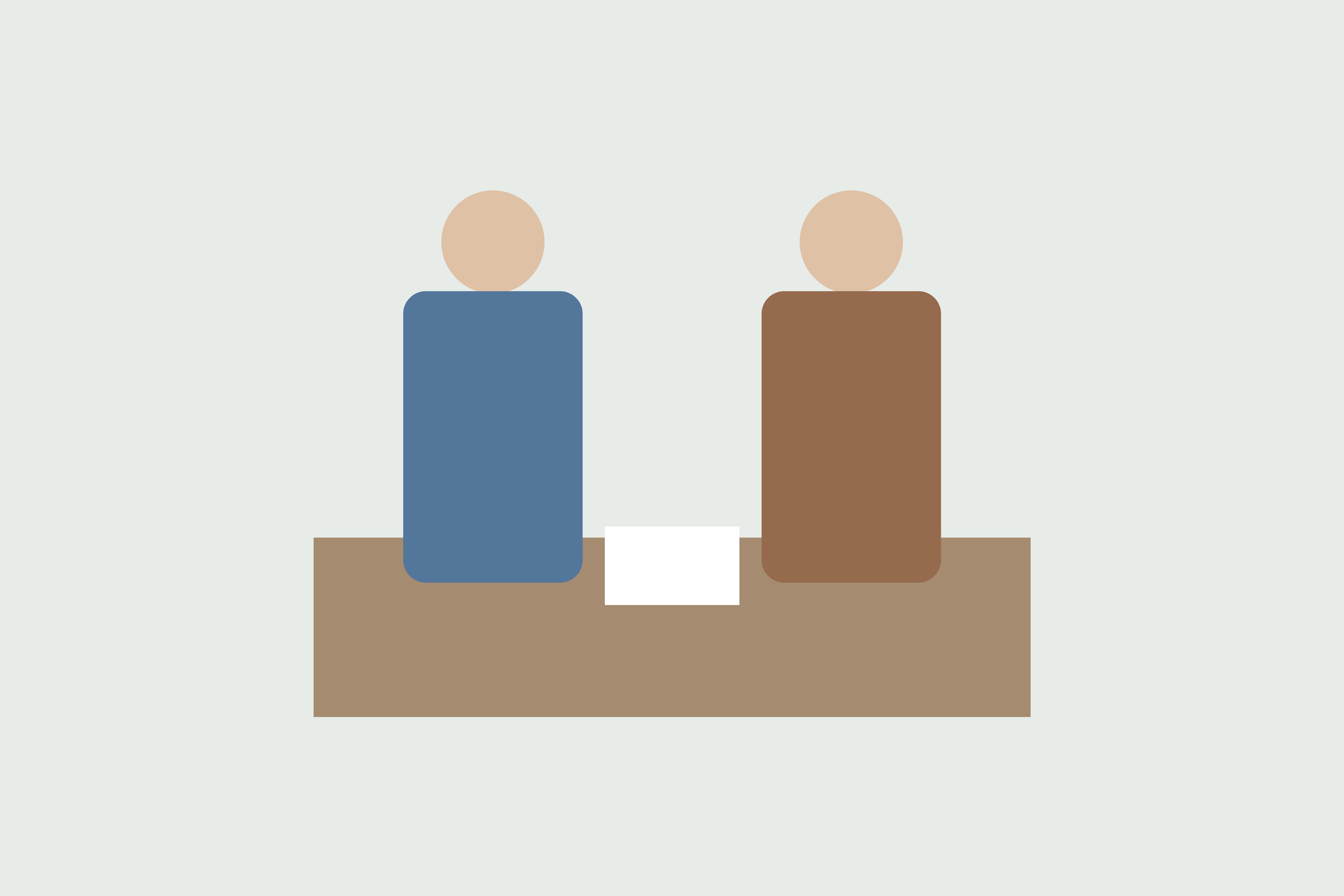
2. Read the shoot note and participation record
Start with the fictional shoot note. Camera A was set to Japan time; Camera B was set to UTC. UTC is a shared reference for time; Japan time is nine hours ahead of it. The note establishes that the video followed the photograph, but it does not supply a verified timestamp or exact second for the video. Leave that unknown instead of calculating a value to fill it.
Example row 1
- Shoot date
- 2026-10-01
- Camera
- Camera A
- Clock setting during the shoot
- Japan time
- What was recorded / known order
- IMG_0042.JPG: two people checking papers at a desk
- Still unknown
- No timezone shown in the photograph’s Exif
Example row 2
- Shoot date
- 2026-10-01
- Camera
- Camera B
- Clock setting during the shoot
- UTC
- What was recorded / known order
- C0042.MP4: same scene; recorded immediately after the photograph
- Still unknown
- The video’s recorded timestamp and exact second remain unverified
Shoot note — example TSVShoot note — blank TSV
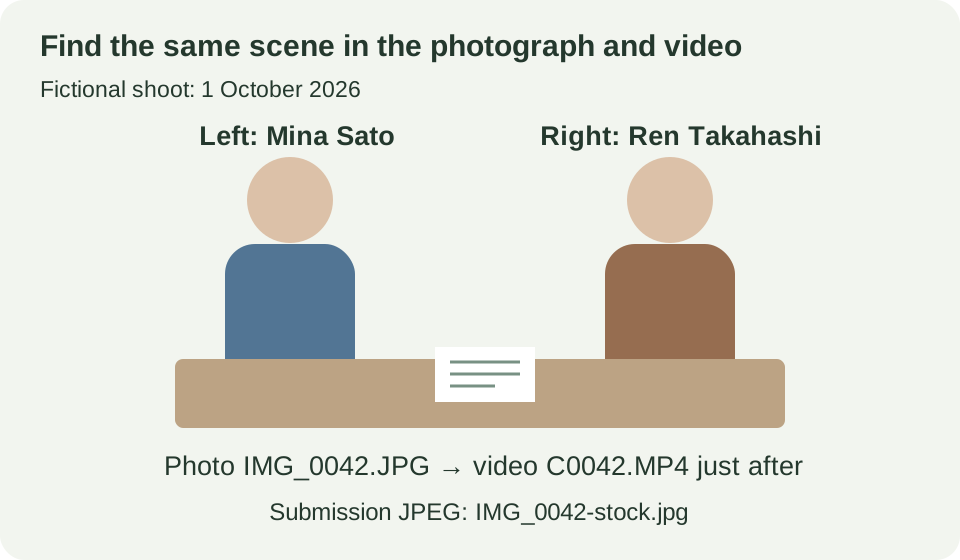
The participation record connects each person with the name written on their document, using the same diagram, names and date. Similar-looking English and Japanese names alone do not establish identity. In this fictional example, the record below connects the two spellings.
Example row 1
- Shoot date
- 2026-10-01
- Position in the photograph
- Left
- Participant name spellings
- Mina Sato (佐藤みな)
- Name on the document
- 佐藤 みな
- Original document filename
- Mina_Sato_20261001.jpg
- Reference for comparing people
- Left in two-person-scene.svg (fictional diagram)
Example row 2
- Shoot date
- 2026-10-01
- Position in the photograph
- Right
- Participant name spellings
- Ren Takahashi (高橋れん)
- Name on the document
- 高橋 れん
- Original document filename
- Ren_T_20261001.jpg
- Reference for comparing people
- Right in two-person-scene.svg (fictional diagram)
Participation record — example TSVParticipation record — blank TSV
3. Open the two practice documents
These are reading exercises made for this material. Use them to find the name, shoot date and signature field. They are not Adobe’s model-release form and contain no real signatures, addresses or contact details.
Mina’s name is written “佐藤 みな”; Ren’s is “高橋 れん.” Both shoot dates are 1 October 2026. Ren’s filename, Ren_T_20261001.jpg, is abbreviated, so return to the participation record rather than deciding from the filename alone.
Knowing whose document it is and having all fields needed for submission are separate results. Both documents are incomplete because their signature fields are blank. Do not sign them with your own or an invented person’s name.
Open Mina’s practice documentOpen Ren’s practice documentOpen the blank reading sheetOpen the document-reading examples
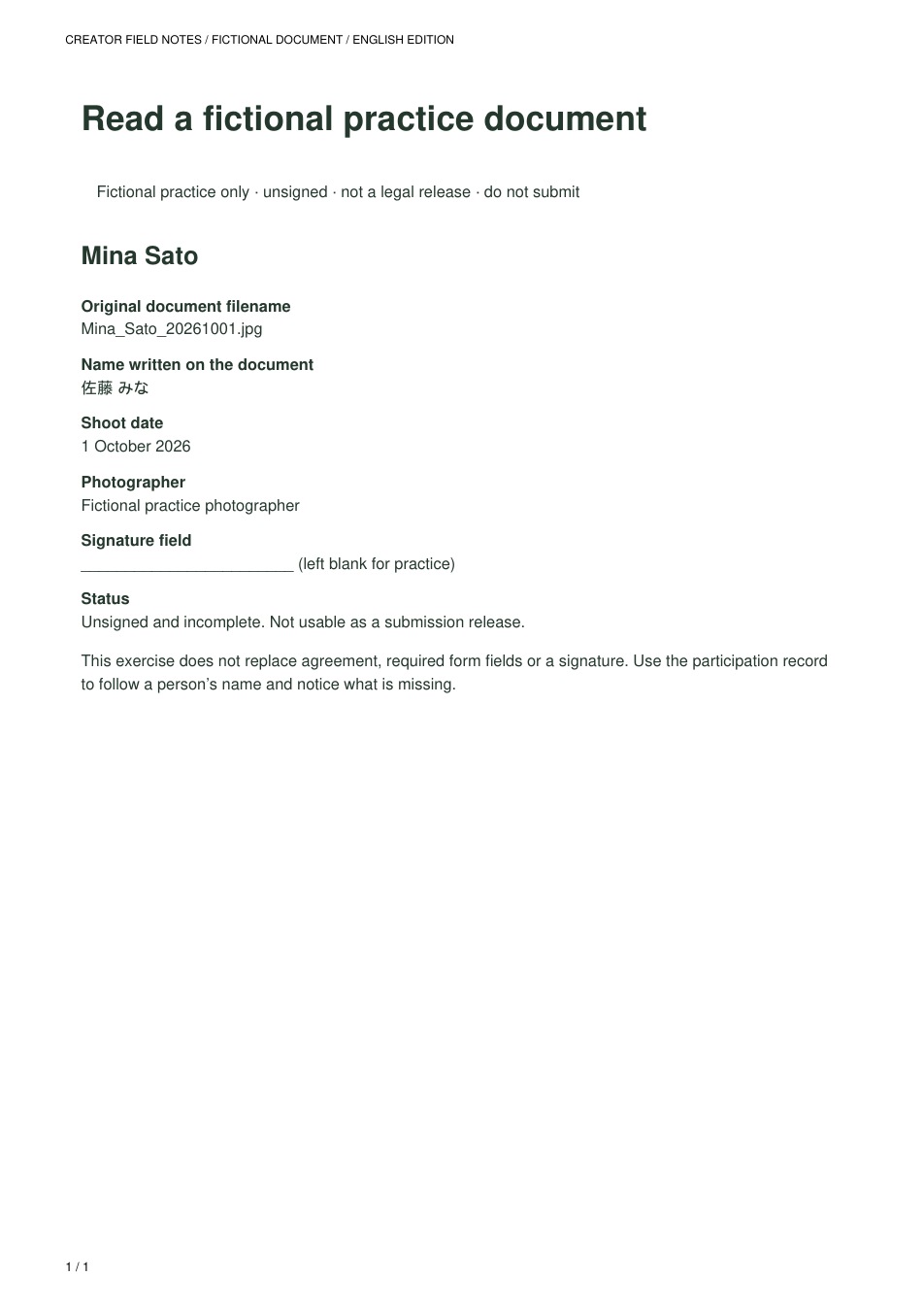
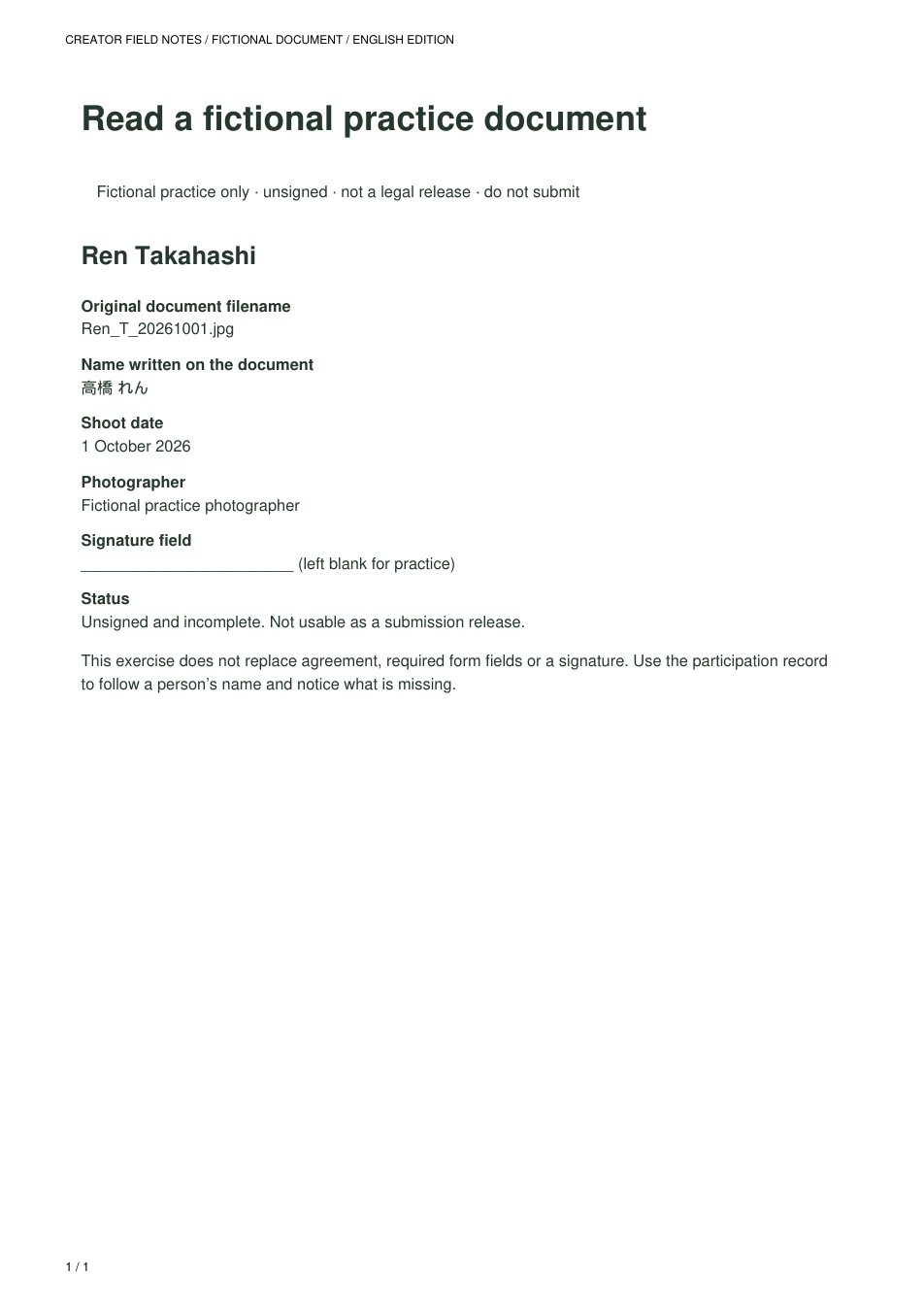
The document images come from the editable English HTML in documents/document-reading-example.en.html. Edit that HTML when changing the text. No image imitates a handwritten signature.
4. G14: write a note that helps you find both files again
Return to G14: save what you established in a table
- In Numbers, choose File → Open and open
assets-blank.en.tsv. Check that its six headings appear in separate columns. - Use the fictional shoot note and the article’s worked example to fill two rows: one photograph and one video. You have not opened the actual media files, so label the dates as “copied from the article’s fictional example.”
- Choose File → Save and save
Shoot-practice-file-note.numbersinside your unpacked practice folder. Close its window, then reopen the saved file. - Read the photograph’s location again, and the video’s result: “immediately after the photograph; exact second unconfirmed.” Do not record this as a check of real capture metadata.
The article’s worked example follows. Its six headings match the blank table.
Example row 1
- Original file location
- Shoot practice/Originals/IMG_0042.JPG
- Date/time or information read
- 2026-10-01 09:00:10
- Where I looked
- Preview → Inspector → Exif → Date Time Original
- What I established / remaining question
- Shoot note: Camera A used Japan time. No timezone shown in photograph.
- Known date/time or shooting order
- Japan time 2026-10-01 09:00:10
- Submission copy location
- Shoot practice/Submission/IMG_0042-stock.jpg
Example row 2
- Original file location
- Shoot practice/Originals/C0042.MP4
- Date/time or information read
- Date/time not readable on screen; two people at desk
- Where I looked
- QuickTime playback. Shoot note: Camera B used UTC; video immediately after photo.
- What I established / remaining question
- UTC is a shared time reference, nine hours behind Japan time. Recorded time in this file remains unverified.
- Known date/time or shooting order
- Immediately after IMG_0042.JPG; same scene. Exact second unconfirmed.
- Submission copy location
- Not created (not submitted in this exercise)
5. G15: keep a candidate document separate from a matched document
This exercise uses three rows so you can compare a change. In an actual working record, update one row per person. Keep Mina’s row and two stages for Ren: candidate and matched. In a real record, once you establish whose document Ren’s file is, clear that person’s candidate field and update the matched-document field and next action in the same row.
Download the blank release-note TSV. Open releases-blank.en.tsv in Numbers.
- Open the blank table. In Mina’s row, note that the participation record and document show the same name and date.
- For Ren, first put
Ren_T_20261001.jpgin the candidate field. Leave “Matched original document filename” blank. - Read the participation record: the person on the right, the two name spellings and the date. Once you establish the match within the fictional records, use the next row to record the stage “after checking the participation record.” Put Ren’s filename in the matched-document field and leave the candidate field blank.
- In the last field, write that the signature is blank: you know whose document it is, but it cannot be used for submission.
- Save
Shoot-practice-release-note.numbers, close it and reopen it. Compare Ren’s first and later rows: the candidate and matched-document fields have changed.
The blank table starts with two rows. When you need Ren’s later row, right-click the last row and choose Add Row Below to add a third. The worked example already has three rows.
Example row 1
- Stage checked
- When looking for documents
- Photo filename
- IMG_0042-stock.jpg
- Person in the photograph
- Left: Mina Sato (佐藤みな)
- Candidate document — not yet matched
- Not applicable
- Matched original document filename
- Mina_Sato_20261001.jpg
- Record used and next action
- Read the participation record's reference picture, name and shoot date and the document's 佐藤 みな. Required release fields need a separate check.
Example row 2
- Stage checked
- When looking for documents
- Photo filename
- IMG_0042-stock.jpg
- Person in the photograph
- Right: Ren Takahashi (高橋れん)
- Candidate document — not yet matched
- Ren_T_20261001.jpg (the document says 高橋 れん)
- Matched original document filename
- (blank)
- Record used and next action
- A similar name is not enough. Read the participation record's reference picture, name and shoot date.
Example row 3
- Stage checked
- After reading the participation record
- Photo filename
- IMG_0042-stock.jpg
- Person in the photograph
- Right: Ren Takahashi (高橋れん)
- Candidate document — not yet matched
- (blank)
- Matched original document filename
- Ren_T_20261001.jpg
- Record used and next action
- The same shoot's reference picture and both name spellings match. Clear the candidate column and move the filename to the matched column. Required release fields need a separate check.
Release note — blank TSVRelease note — article’s example TSV
6. G16: save what is missing and leave the work unsubmitted
Return to G16: save the result in Numbers
The article’s preflight-example.en.tsv is a fictional completed example that assumes the real picture and both signed documents have been checked. It is not the result of inspecting the unsigned documents in this set. For this practice, use the results below.
- Open
preflight-blank.en.tsvand check its five columns. - Mark checks needing the missing real JPEG “unverified,” and the unsigned documents “incomplete.” Do not copy 24 MP or 12 MB as values you actually read.
- The final state is “practice finished; do not submit.” There is no upload or submission step in this exercise.
- Save
Shoot-practice-preflight-note.numbers, close it and reopen it. Check that “unverified,” “unsigned” and “not submitted” remain readable.
Example row 1
- What to check
- Submission file
- What you do
- Read the package's file list and explanation
- Values read or picture contents
- The real IMG_0042-stock.jpg photograph is not supplied
- Result
- Not checked
- Repair or next action
- If you optionally choose your own submission JPEG, replace the example filename.
Example row 2
- What to check
- JPEG, pixels, file size and color
- What you do
- Only if you have your own JPEG, read Finder and Preview
- Values read or picture contents
- The article's 6000 × 4000 / 12 MB / sRGB are fictional values. No real file measured in this package exercise.
- Result
- Not checked
- Repair or next action
- Do not copy the example as measured data. Write the values actually displayed for your own file.
Example row 3
- What to check
- Quality and picture contents
- What you do
- Only with a real photograph, enlarge faces, hands, desk and corners
- Values read or picture contents
- A diagram cannot establish real focus, blur or objects in a photograph
- Result
- Not checked
- Repair or next action
- If you use your own picture, inspect what actually appears in it.
Example row 4
- What to check
- Releases for two people
- What you do
- Read names, shoot dates and signature fields on the practice documents
- Values read or picture contents
- Mina_Sato_20261001.jpg / Ren_T_20261001.jpg. Both signature fields are blank.
- Result
- Incomplete
- Repair or next action
- The fictional person/document matches are understood, but these are unsigned documents. Do not submit them as releases.
Example row 5
- What to check
- Title and keyword draft
- What you do
- Compare the fictional diagram with the example wording
- Values read or picture contents
- Two people checking papers at a desk / two people, papers, desk, checking, indoors
- Result
- Fictional draft example
- Repair or next action
- If choosing your own photograph, replace these words with what it actually shows.
Example row 6
- What to check
- End of this exercise
- What you do
- Keep the unconfirmed and incomplete rows; save and reopen
- Values read or picture contents
- Document matching practised. Real photograph not checked; no signatures; not uploaded or submitted.
- Result
- Practice finished — do not submit
- Repair or next action
- Do not call actual submission preparation complete until real-image checks, agreement and required fields are finished.
Preflight note — blank TSVThis practice’s results — some checks unfinishedArticle’s fictional completed example — separate from this result
7. If you want to use your own photograph and video
You may use a photograph and video you took of the same scene. A picture and clip of the same place or objects without people also work for G14. Copy the originals into a practice folder; use your actual filenames, dates and number of people. There is no need to send your media to this site.
- Open the photograph in Preview. Choose Tools → Show Inspector, then read Exif → Date Time Original. If the field is absent, write “not displayed.” Do not substitute Finder’s modification date.
- Play the video in QuickTime Player and compare the scene. Window → Show Movie Inspector can show dimensions and duration, but does not guarantee a readable capture time. Leave an unknown time unverified.
- For G16, use a separately exported JPEG after finishing the picture. Read its kind and size in Finder’s Get Info, and its width, height and profile in Preview’s Inspector, under General. Keep the original unchanged.
- For G15, use the people actually in your photograph. A picture without people does not need Mina’s or Ren’s documents. Keep actual names and releases locally; do not substitute the fictional practice documents.
- Save a description that fits your real photograph and note what remains unchecked. This set does not submit your work.
Ordinary photographs, videos and individual Missions have different submission conditions. These tables are your own working notes, not a submission-site import CSV. Reading the examples without the software does not mean you have checked a real photograph or edited, saved and reopened a table.
8. Start again, or check what you have finished
To start again, copy another blank table. Keep the example tables and documents as references, separate from your three saved Numbers files. If you use real media, work on copies of the originals.
After the exercise, reopen the three notes and find the shoot note, participation record and both documents again. You have finished this record-keeping practice when you can explain why Ren’s file moved from candidate to matched, and why missing signatures still prevent submission. Real image quality, actual rights and review acceptance need their own checks.
Return to G14 · Return to G15 · Return to G16
Official sources used by the articles
Adobe Stock: ordinary photo requirements · Adobe Stock: model releases. The included practice documents do not replace the required forms.
English edition of the existing Japanese practice set, created on 20 October 2026 JST. It retains the Japanese articles’ official-source check date of 19 October 2026 and adds no submission conditions. Choose reading or local file practice as needed. Downloading alone does not verify a real picture or signature. Prior Japanese-interface operation checks and existing English wording checks are retained; this translation is not a new English-interface or real-media acceptance test.
Read the Japanese edition · Separate member shoot-planning guide — active member access required