Open one finished JPEG before submitting it
Open the JPEG you intend to submit, then check its dimensions, color, picture contents, releases and description. The aim is to be able to explain what you actually checked—not to fill every box with “done.”
The main fictional example is IMG_0042-stock.jpg, with Mina Sato (佐藤みな) on the left and Ren Takahashi (高橋れん) on the right, looking at papers at a desk. The original is IMG_0042.JPG. This example does not submit the same-scene video C0042.MP4.
Use Finder and Preview on Mac to open the saved JPEG, and Numbers to retain the result. This is a manual sequence. You perform each numeric, visual and document check yourself. The package contains no automatic validator.
With your own real files, a completed check leaves a submission JPEG, the necessary releases, a title/keyword draft and your notes. Uploading and submitting are later actions. No real submission photograph or signed releases are included here.
1. Open the actual JPEG you will submit
- In Finder, open your practice folder and its submission folder. Select
IMG_0042-stock.jpg, or replace that example with your own exported JPEG. Use the finished file, not the source still displayed in an editor. - Control-click the file, choose Open With → Preview, and check its name in the window's title bar.
- Select that same file in Finder and choose File → Get Info (Command-I). Read Kind and Size. Changing a filename's extension to .jpg does not convert its contents into a JPEG.
If color or quality needs work, return to the original and export a new, separately named JPEG. Keep the original. Repeat the checks below for the new export. The color-comparison guide explains checking an sRGB export.
2. Read dimensions and color, then enlarge the picture
Check the ordinary Adobe Stock photo requirements
The example values—24 MP and 12 MB—are invented. They are not target values you must copy.
- In Preview choose Tools → Show Inspector (Command-I), then view General information.
- Read the width and height in pixels. The fictional example is 6,000 × 4,000 = 24,000,000 pixels, or 24 MP. MP means one million pixels; it is different from the dpi value used for printing.
- Read the color-profile name. A profile describes how the file's color values are interpreted. The previous Japanese-interface operation fixture displayed
sRGB built-in; that is an observed fixture label, not proof about your JPEG. If your file has no profile listed or a different one, leave the check open and return to export settings. - Compare those readings and Finder's file size with Adobe's ordinary photo requirements: JPEG with sRGB, 4–100 MP, at most 45 MB, checked on 20 October 2026. The fictional JPEG / 24 MP / 12 MB / sRGB example meets these four numeric/format conditions.
Reading “sRGB” does not establish good-looking color or picture quality. Do not try to repair color by merely assigning a different profile name; return to the original and export with the appropriate color conversion when necessary.
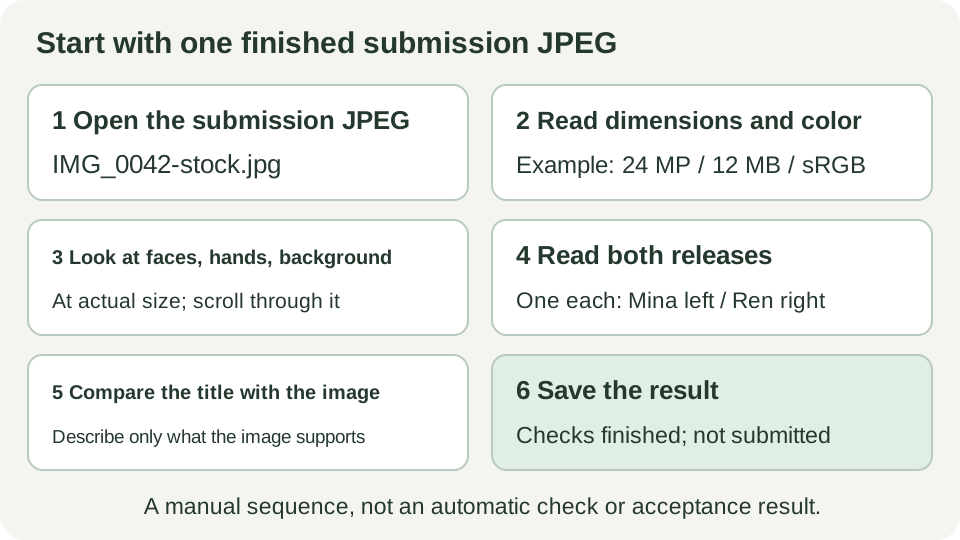
Look at faces, hands, the desk and all four corners at actual size
- Choose View → Actual Size in Preview. The whole image may no longer fit; scroll through it.
- Inspect Mina's face, Ren's face, then hands and papers. Look for missed focus, movement blur or unnatural editing that the small whole-image view concealed.
- Move through the desk, clothing, background and corners. Look for logos, other people's artwork, readable addresses or phone numbers, and private document contents.
Write the place and problem, such as “blur in the right person's eyes” or “phone number on the paper.” Numeric requirements do not replace looking at the image. What appears in your photograph can also require permissions beyond releases for people.
3. Read the two releases and the words describing the picture
Use the matched-document rows to open the actual paperwork
Open Mina_Sato_20261001.jpg and Ren_T_20261001.jpg from the matched-document rows of the release notes. Check the link to each person and required names, signatures and dates. Do not treat Ren's earlier candidate row as a completed check.
The completed-example table below assumes that both releases in the fictional example have been fully checked. The supplied practice documents are different: both are unsigned. For this package's exercise, keep their status incomplete. Return to the document requirements when needed.
Draft a title and keywords for what is actually visible
An optional title for this fictional scene is “Two people checking papers at a desk.” Starting keywords might be two people, papers, desk, checking and indoors. These are not required wording or a fixed five-keyword formula. Keep the picture open and compare every term with what you can see. Do not invent jobs, a relationship, a company or a location.
Replace the example with words that describe your own photograph, and read Adobe's title and keyword guidance for ordering relevant terms.
Example row 1
- What to check
- Submission file
- What you do
- Open the submission JPEG in Preview and read its title-bar filename
- Values read or picture contents
- Shoot practice/Submission/IMG_0042-stock.jpg
- Result
- Checked — fictional completed example
- Repair or next action
- Keep it distinct from the original IMG_0042.JPG.
Example row 2
- What to check
- JPEG, pixels, file size and color
- What you do
- Read Kind and Size in Finder Get Info; read width, height and color profile in Preview General information
- Values read or picture contents
- JPEG / 6000 × 4000 = 24 MP / 12 MB / sRGB
- Result
- Checked — fictional completed example
- Repair or next action
- Compare with ordinary-photo requirements: JPEG with sRGB, 4–100 MP, at most 45 MB.
Example row 3
- What to check
- Quality and picture contents
- What you do
- Use Actual Size in Preview; inspect faces, hands, desk and corners
- Values read or picture contents
- Two people checking papers at a desk. No focus, hand or background problem found; no logos or readable private information.
- Result
- Checked — fictional completed example
- Repair or next action
- If a problem exists, export a new copy from the original and repeat the size and color checks.
Example row 4
- What to check
- Releases for two people
- What you do
- Open the photo, matched-document notes and actual required fields on each release
- Values read or picture contents
- Left: Mina_Sato_20261001.jpg / right: Ren_T_20261001.jpg. Names, signatures, dates and other required fields checked.
- Result
- Checked — fictional completed example
- Repair or next action
- This completed example assumes two adults and fully checked releases. The supplied practice documents are unsigned. For minors or other signing conditions, read the official requirements.
Example row 5
- What to check
- Title and keyword draft
- What you do
- Compare the draft for the submission screen with the open picture
- Values read or picture contents
- Optional example title: Two people checking papers at a desk. Starting keywords: two people, papers, desk, checking, indoors.
- Result
- Checked — fictional completed example
- Repair or next action
- Use words for your own picture. These are not Adobe-required wording or five mandatory keywords. Check entered text again after upload.
Example row 6
- What to check
- End of this check
- What you do
- Reread each row for blanks or missing checks, then save
- Values read or picture contents
- Submission JPEG, two releases, title/keyword draft and checking notes ready. Not uploaded or submitted to Adobe.
- Result
- Checks finished — not uploaded — not submitted
- Repair or next action
- Check the saved file and notes before proceeding to ordinary-photo submission. Review has not happened.
Download the English example TSVDownload the blank English TSV
Save the result in Numbers
- Open
preflight-blank.en.tsvthrough File → Open. It has five columns. Describe your own check for each item. The completed example is available separately aspreflight-example.en.tsv. - Write Checked only for what you actually inspected. Use Not checked for something you have not seen, or Fix and check again where work remains. The table makes no automatic decision.
- Save as
preflight-practice.numbersin the local practice folder you explicitly select. Close and reopen it. Check that the filenames and outstanding work are still readable.
Both example and blank TSVs are personal working notes. Neither is an Adobe upload CSV. The shared Numbers instructions explain opening them. For the supplied unsigned/no-photo exercise, use preflight-practice-result.en.tsv, which leaves real-image checks open.
4. State what is ready, and record that it has not been uploaded
In the fictional completed example, the finished JPEG's format, dimensions, color and contents have been checked, the two releases have been read, and a title/keyword draft is ready. Retain the JPEG, the two documents, the draft and the notes. Record “Checks finished; not uploaded; not submitted.” If your own table still has a missing check or repair, return to that row first.
For an eventual real submission, review the chosen photograph, title, keywords and attached releases in Adobe Stock's submission screen too. Finishing this exercise does not guarantee acceptance. Return to the existing selection-to-submission article for the larger workflow.
Keep video and individual Missions separate
If you later submit C0042.MP4 as ordinary video, do not apply a photograph's 4–100 MP condition. Read the video requirements for duration, frame rate, audio and other conditions. The existing audio-removal guide is available in English and outside this package.
Adobe Missions use individual briefs. Read the official Mission FAQ and that Mission's brief. If the brief prohibits editing, the ordinary-photo color-export or retouching instructions are not permission to edit its submission. This ordinary-photo table does not establish Mission compliance.
Translated from existing Japanese G16 and its practice result. Official photo conditions checked on 20 October 2026. Earlier Mac operation evidence is retained; no real photograph, signed release, upload or submission was accepted through this English edition.