Compare the finished photograph with the JPEG you saved
You save a finished photograph as a JPEG, but the red cup looks paler. Before increasing saturation, check which file and application you are looking at. Compare the same picture under the same conditions first; then you can choose what to investigate next.
1. Choose one photograph and one color to watch
This fictional example uses IMG_0101.JPG: a plain red cup and a notebook with blank pages. Look at the strength of the red and the brightness of the white paper. The diagram shows a comparison sequence, not a real photograph or a color reference. Use an area that concerns you in your own photograph.
The steps assume you have already imported and finished the photograph in Lightroom Classic. The cloud-based Lightroom application has different screens and storage behavior. You do not need to buy or change software for this exercise. If you use another editor, keep the same comparison method and check that editor's export instructions.
Leave the original photograph and its adjustments in place. Make a folder on your computer called Color check. During the comparison, keep exposure, white balance and saturation unchanged, and use the same monitor and room lighting. Do not change screen brightness or switch a night-time color feature on or off halfway through.
This is an ordinary SDR photograph: an image intended for a standard display brightness range. It does not cover HDR finishing or print matching. It also does not permit editing a Mission submission whose brief prohibits editing.
2. Read the settings and export one sRGB JPEG
sRGB is a standard for representing color. An ICC profile tells an application how to interpret the color numbers in a file. Without the right interpretation, the same numbers can look different. Adobe's color-management explanation provides background.
Select the photograph in Lightroom Classic and choose File → Export. Even if you start with a saved preset, read where this export will go and what it will contain.
- Choose the
Color checkfolder as the export location. Give the output a separate name, such ascolor-check-srgb.jpg. If that name already exists, choose a new name instead of replacing the earlier file. - In File Settings, choose JPEG for the image format and sRGB for the color space. Do not enable HDR Output for this comparison. Keep one of your usual submission-quality settings throughout; do not change quality between comparisons.
- For the first comparison, do not resize the long edge in Image Sizing or add a watermark. Do not introduce a new crop or output-sharpening change halfway through.
- Choose Export. Open
Color checkin Finder or File Explorer, read the saved JPEG's name, and open that file.
Ordinary Adobe Stock photographs have JPEG and sRGB requirements. An sRGB export alone does not establish acceptable picture quality or rights. This step is a color comparison of one photograph.
3. Compare in the same application on the same screen first
To compare inside Lightroom Classic, import the exported JPEG as a separate file. In Library, choose Import, select the Color check folder and select the one JPEG. Use Add when you want to leave the existing file in its current location; do not move or copy it unnecessarily. Set the Develop Settings applied during import to None, and do not synchronize adjustments to the original. See Adobe's import instructions.
Immediately after import, the list may show only the imported JPEG. In Library's left panel, choose Catalog → All Photographs so that both IMG_0101.JPG and color-check-srgb.jpg can appear. If a filter hides one, choose Filters Off on the Library Filter bar. This changes the visible selection; it does not require moving files or synchronizing edits.
Select the finished original and the imported JPEG in Library. Hold Command on Mac or Ctrl on Windows to select the second file. Open Compare view, also available through View → Compare. Read the names to make sure the two views really are the original and the export.
At the same viewing size, compare the cup's red and the notebook's white. Describe what you see in a short sentence: “The red is slightly paler, but the white is close,” or “Both areas look brighter.” Starting with an editing view on one computer and a small thumbnail on another device changes the file, application and screen at once.
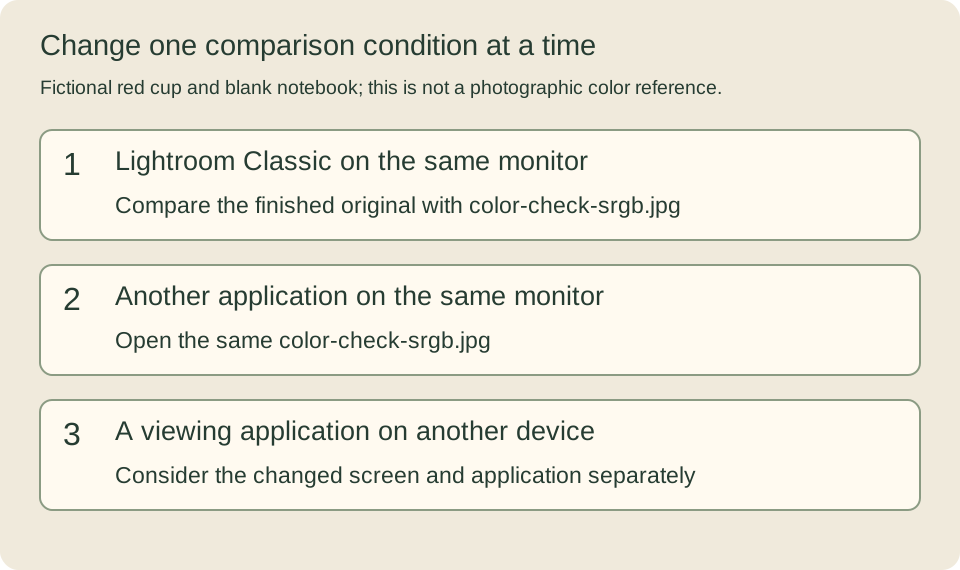
4. Choose one next step from where the difference appears
The JPEG looks different even in the same application. Reopen the filename and export settings. Check whether sRGB was selected or whether a different preset or adjustment was introduced. sRGB does not contain every color available in a wider editing color space, so not every vivid color can remain identical. This comparison also does not prove that your monitor is accurate.
The same JPEG changes when opened in another application. Before making another export, find out how that application handles profiles or HDR. Opening the same color-check-srgb.jpg keeps one condition fixed.
It looks close on your computer but different on another device. Check that device's screen settings and viewing application first. Changing the original's saturation to match one phone can make it look unnatural elsewhere. Record the application, screen and area where the difference appeared.
Assigning a profile is different from converting an image to a color space. In Adobe's explanation, assigning changes the interpretation without changing the color numbers; converting changes the color values for a destination space. Do not treat “assign sRGB” as a general repair for an appearance you dislike. If the original profile is unknown, trace the application and saving steps first.
Keep the original adjustments and make a new export if needed
If you find a setting to change, change that one setting and export color-check-srgb-v2.jpg from the original and its retained adjustments. Avoid repeatedly editing and resaving the previous JPEG. JPEG compression and color conversion can affect image data; the exported file is not identical to the original.
No visible difference is also a result. Continue with opening the actual saved JPEG before submission. If you also need to remove GPS information, the separate GPS and keyword guide is available in English; GPS removal is a separate task.
Translated from the existing Japanese G11, with its example and scope retained. English menu wording was checked against Adobe documentation on 20 October 2026; a new English-interface Lightroom session and real-photo color comparison have not been performed for this English edition.