01Make protecting finished assets the first priority
At the moment they are shot, photos and videos are candidates for use as assets. Once finishing, required information, and rights checks are complete, finished assets become the basis for later submissions and reuse. First, prioritize not losing that finished version and being able to explain which state you saved.
Uploading to a sales site is not a substitute for my own backup. Uploading, submission, acceptance, publication, and sale are separate states, and I do not assume I can always recover the same file from the destination. I keep local storage and verified copies separately.
On 29 September 2026, I said that I had a server of approximately 50 TB at home, and that it was filling up too. That capacity described my situation at that time; it is not a requirement for beginners. Start with storage suited to the amount you have, where even a small collection can be found and restored.
02Separate source files, editing information, and finished versions
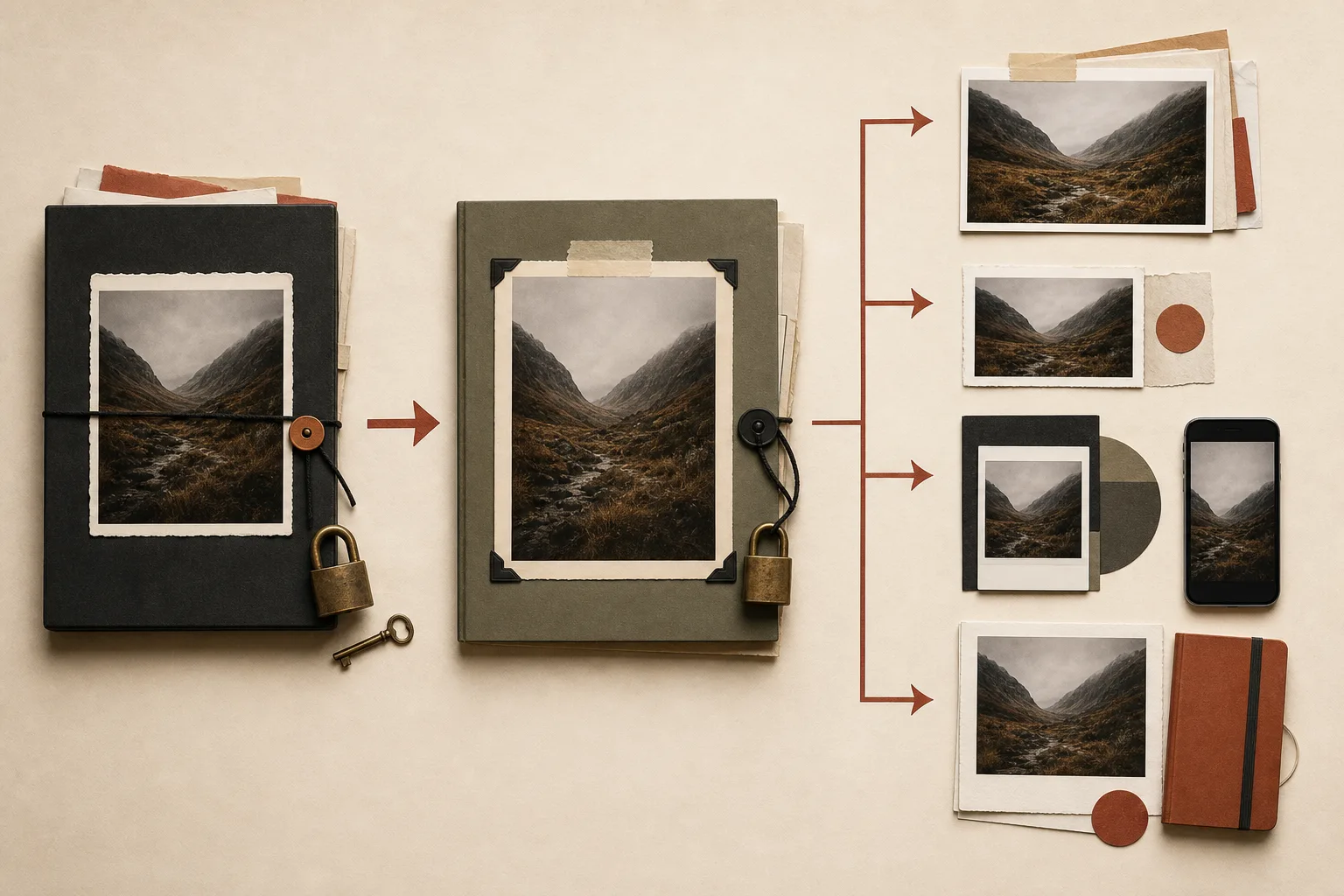
Source files are the records made during shooting: RAW files, JPEGs straight from the camera, original video, and audio recordings. Editing information and masters retain what is needed to reproduce the finish, including color, brightness, cropping, corrections, sound, and the timeline. Finished and submission versions are files exported for a particular use. If you treat them as having the same role, it becomes unclear where you can return to make changes.
Make edits and conversions as separate versions without overwriting the source files you intend to keep. A name containing only “final” will not distinguish it from the next final version, so include a version, date, purpose, or reason for the change. If you have cleared out the source files rather than keeping them, record that fact too.
Check the size, format, color space, compression, video resolution and fps, and audio required by each destination, then make a fresh export from the reference version you still have. Recompressing and reusing an older, smaller submission version can reduce image quality or cause you to send the wrong version.
Open the exported file itself and check dimensions, orientation, color, tonal gradation, noise, retouching artifacts, the start and end of the video, and audio. Looking right in the editing window and being correct in the file you actually send are different things.
03Make assets findable with folders and identifiers
Give each asset a stable number and connect it to the original filename, edited version, finished version, search information, rights records, and destination identifiers. Organize folders around real groupings such as date, location, and project, rather than relying only on changeable judgments such as “good ones” or “new edit.”
It is important to be able to reach the actual file from the same number even if its storage location changes. Keep the link between model releases and the relevant assets. Do not mix original documents or personal information into public folders or diagrams intended for sharing; store them where only the people who need access can check them.
Distinguish states such as shot, selected, edited, rights checked, submitted, accepted, rejected, published, and sold. Even when you submit the same asset to another site, do not mix the number of original assets with the number of submissions.
Try retrieving material by location, season, portrait or landscape orientation, and whether it is a photo or video. Can you also check which version was submitted and whether the necessary permission exists? If you have to open folders one by one and rely on memory, improve records a little at a time, starting with the searches that cause difficulty.
04Missing catalog links and handoffs between applications
A reference-based photo-management catalog is a map recording source-file locations, selections, search information, and edits. Keeping the catalog alone will not recover the actual photos. Lightroom Classic’s official guidance also says that photos and exported images need protection separately from the catalog backup.
Changing filenames or locations outside the application can break links. If supported, move files within the application and check that they still open afterward. If files go missing, locate the current actual files and repair the references before creating more copies. If splitting a catalog, also consider whether it will complicate searching and backups.
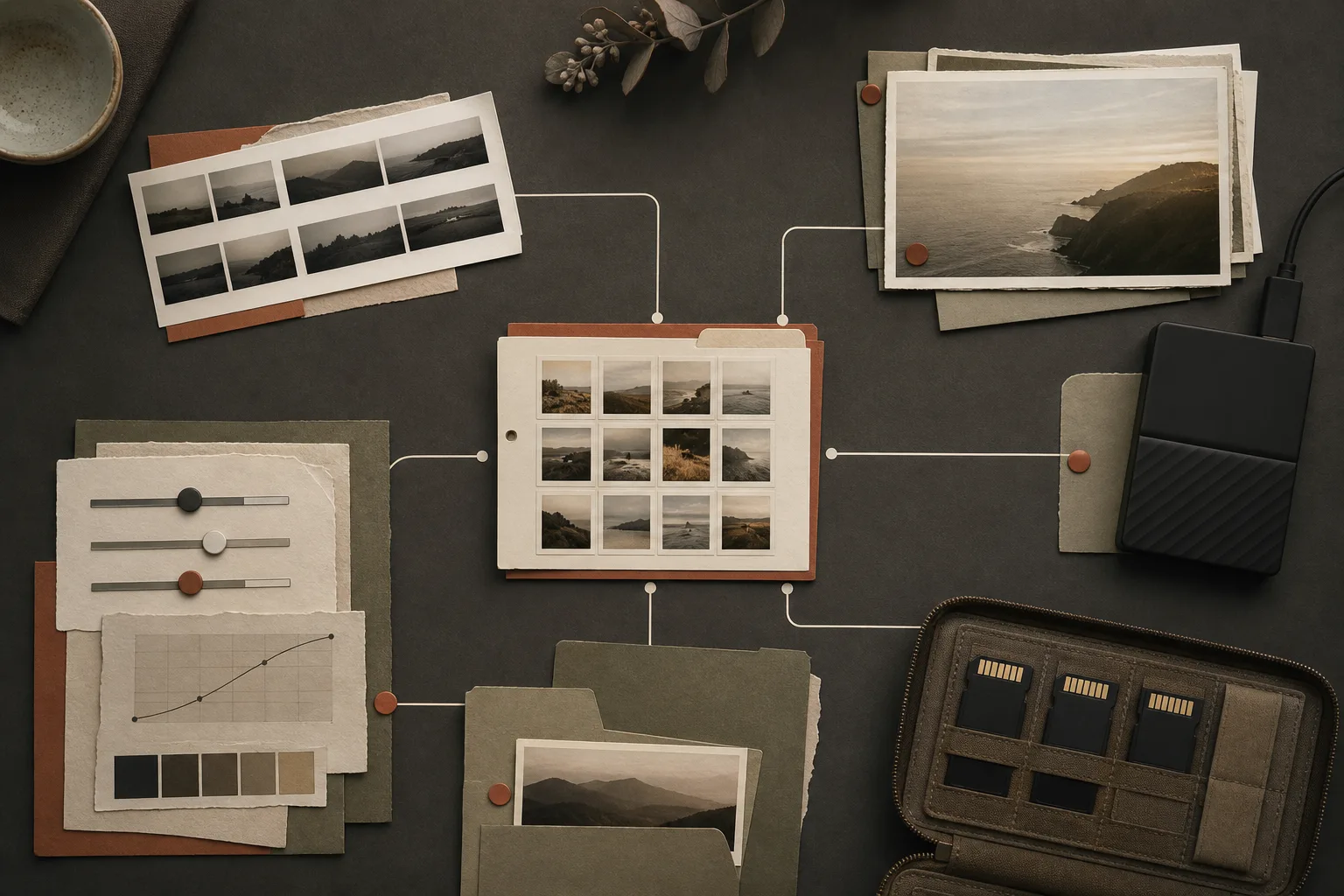
When using multiple applications, decide which record will be kept authoritative for selection, editing, search information, export, and submission status. If you change the same field in both, coordinate the direction and timing of overwrites.
Check the color, resolution, audio, filenames, and search information of files passed between applications, and avoid repeated unnecessary conversions. Test automatic synchronization on a small set of test assets through writing, reading, and re-editing. Ratings and tags may not carry the same meaning in both directions. Use settings that overwrite source files only after you understand how they behave.
Keep long-term information such as asset numbers, links to permissions, destinations and dates, and status in a readable format or a separate register as well, rather than trapping it inside one application. When changing software, do not move every active project at once; test restoration and export within a small scope.
05Backups and checking that you can restore
Do not rely only on a “copy complete” message; check that all required files are present and that important ones open correctly. For important transfers, compare checksums to confirm matching content as well as names and counts. Make the decision about deleting the originals separately afterward.
Two folders on the same drive will both be lost if that drive fails. Distribute copies to storage locations that will not be lost together in the same incident. Synchronization can also propagate accidental deletions to other locations, so do not assume that syncing alone makes restoration possible.
Copy necessary editing information and catalogs as well as the source files and finished versions you keep. Retrieve a small selection from another location and test whether you can actually restore catalog references, edits, and exports. Seeing previews alone does not prove that you have restored the source files.
06What to keep and what to clear out when space is tight
I want to keep source files wherever possible, but when capacity becomes tight, I sometimes clear out original photos and videos too. My practice is not to keep every RAW file forever. I prioritize finished assets while deciding which source files and editing information to retain.
Deleting source files reduces your options for re-editing, such as reworking exposure and color, making a different crop, or exporting to new specifications. For video, some parts cannot be reproduced if you keep only the editing project without the original clips it references. Before freeing up space, open and check the finished versions and copies that will remain, and understand the options you will lose.
You can start by considering duplicates, temporary files, and exports that can be regenerated, but do not decide files are duplicates just because their names are similar. Compare submission history and versions, and keep a record of what you cleared out. Working in small batches lets you check that finished assets and necessary history remain as you proceed.
07Reusing older photos of people and streets in books and other work
I see value in photos of people and streets from the past that can later be used in books and other work. I have also sold older street photographs as a photo book. Because those scenes cannot be photographed again, I want to keep both the material and information from that time.
When reusing an image, look for the file closest to the original among those that remain, such as a RAW file or a JPEG straight from the camera, and check the shooting date, camera, and original name. If only a small social-media image remains, record that fact. Enlarging it alone will not restore lost focus or detail.
On a current screen and at the intended size, check focus, camera shake, noise, clipped highlights, crushed shadows, color bleeding, dirt, and compression artifacts. If making new edits, save them as a separate version and check the actual file you will submit.
Consent or permission obtained for an older shoot may not cover current sales for advertising or use in a booklet. Check people, locations, artworks, trademarks, and the scope of use, and do not fill gaps by guessing. If the necessary evidence is missing, restrict the use or decide against reuse.
It is also important not to describe old streetscapes, uniforms, transport, or work scenes as the current situation. Add the shooting date and historical context to the extent known, and link the check date, edits, uses, and submission results through the asset number. Recording why you decided against a use also reduces the need to repeat the same checks next time.
For older material too, inspect noise and compression artifacts at 100%. Separate that detail check from reviewing it at the current display or intended output size.