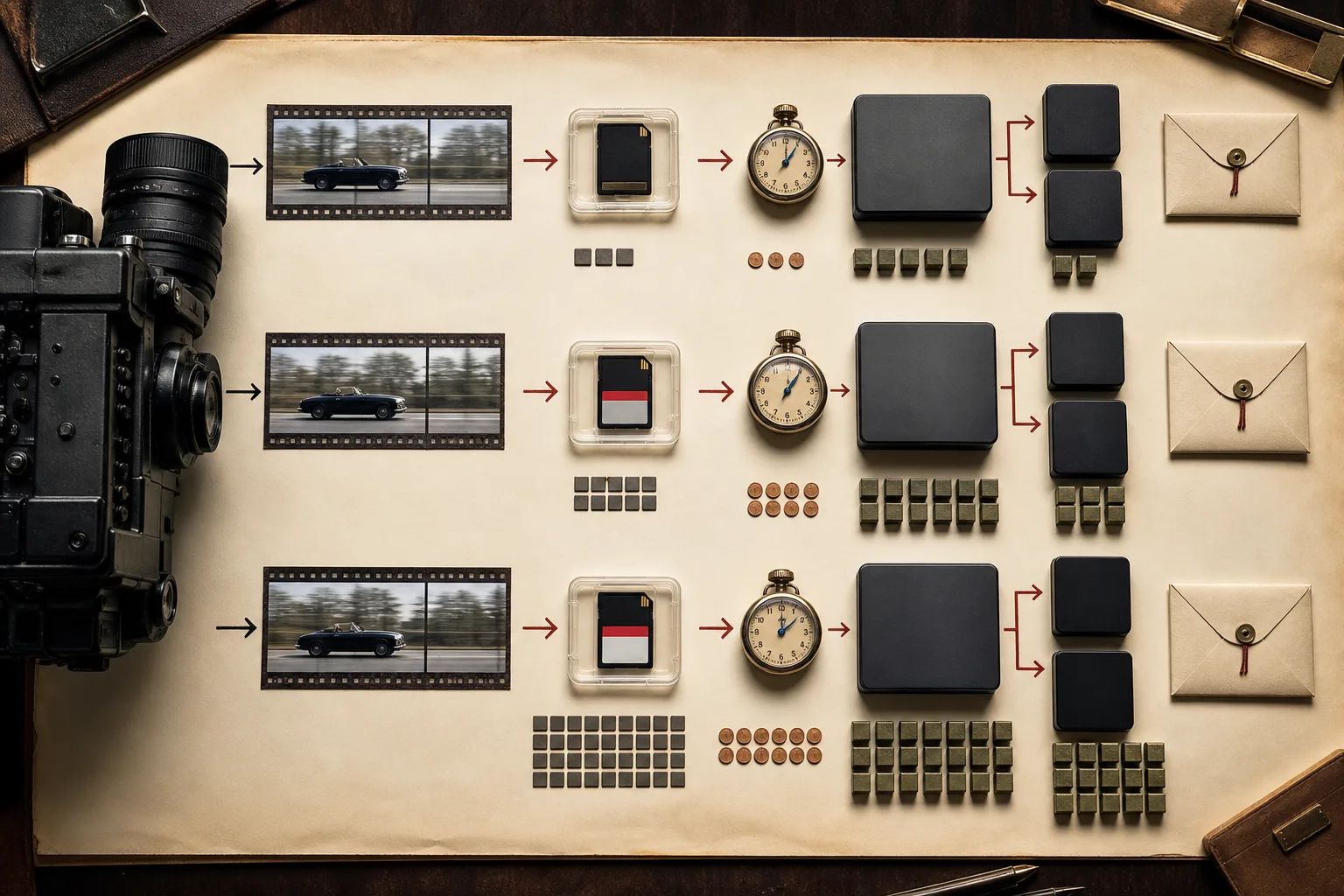
Bitrate is the amount of data recorded each second. It is useful because it turns an abstract camera specification into a production cost you can estimate before the shoot.
Convert bits to bytes before estimating storage.
Camera specifications usually show megabits per second: Mbps. Storage is usually sold in megabytes or gigabytes: MB and GB. Eight bits make one byte, so divide Mbps by eight to estimate megabytes per second.
Mbps ÷ 8 = MB per second
Mbps × 7.5 ÷ 1,000 = GB per minute
Mbps × 450 ÷ 1,000 = GB per hour
At 100 Mbps, one minute is about 0.75 GB and one hour is about 45 GB. At 600 Mbps, one minute is about 4.5 GB and one hour is about 270 GB. Audio, file containers, variable bitrate, and manufacturer notation can change the final size slightly.
Mbps and MB/s are not interchangeable.
A setting of 1,740 Mbps is not 1.74 GB every second. It is about 217.5 MB per second, roughly 13.1 GB per minute, or 783 GB per hour. Confusing bits and bytes makes an estimate eight times too large.
This conversion also helps when choosing a card. The card must sustain the camera’s required write speed, but its advertised maximum speed is not proof of sustained recording performance. Follow the camera maker’s current card class or certification requirement for the selected mode.
A higher bitrate does not prove a better image.
Bitrate describes data quantity, not the quality of every bit. Resolution, frame rate, bit depth, color sampling, codec efficiency, sensor performance, exposure, focus, noise, and in-camera processing all affect the result.
Compare bitrates only when the recording conditions are meaningfully similar. A highly efficient modern codec may preserve a useful image at a lower bitrate than an older codec, while a poorly exposed high-bitrate clip can still be unusable.
The recording mode changes the whole workflow.
Large files need faster and larger cards, longer transfers, more working storage, at least two backup copies, more editing performance, and more upload time. A recording mode that the computer cannot play smoothly or the connection cannot upload reliably is not yet a practical production setting.
RAW and lightly compressed formats preserve more choices for demanding post-production, but they also require conversion and deliberate color work. Use them when the final result needs that flexibility and the complete workflow can support it—not simply because the number is larger.
Choose the setting by working backward from delivery.
Check the destination’s current requirements for resolution, frame rate, codec, file type, duration, and maximum size. Then record a representative one-minute test. Transfer it, edit it, export it, inspect the result at full size, back it up, and measure the upload.
If that cycle is reliable, repeatable, and produces acceptable quality, the setting is useful. If it breaks storage or editing, lower the data burden before buying a more expensive camera.
The best recording setting is the highest useful quality your entire workflow can repeat.
Run the one-minute test
- Write down resolution, frame rate, codec, and Mbps
- Estimate one minute and one hour of storage
- Confirm the card requirement
- Transfer, edit, export, back up, and upload
- Keep the setting only if the full cycle is sustainable